

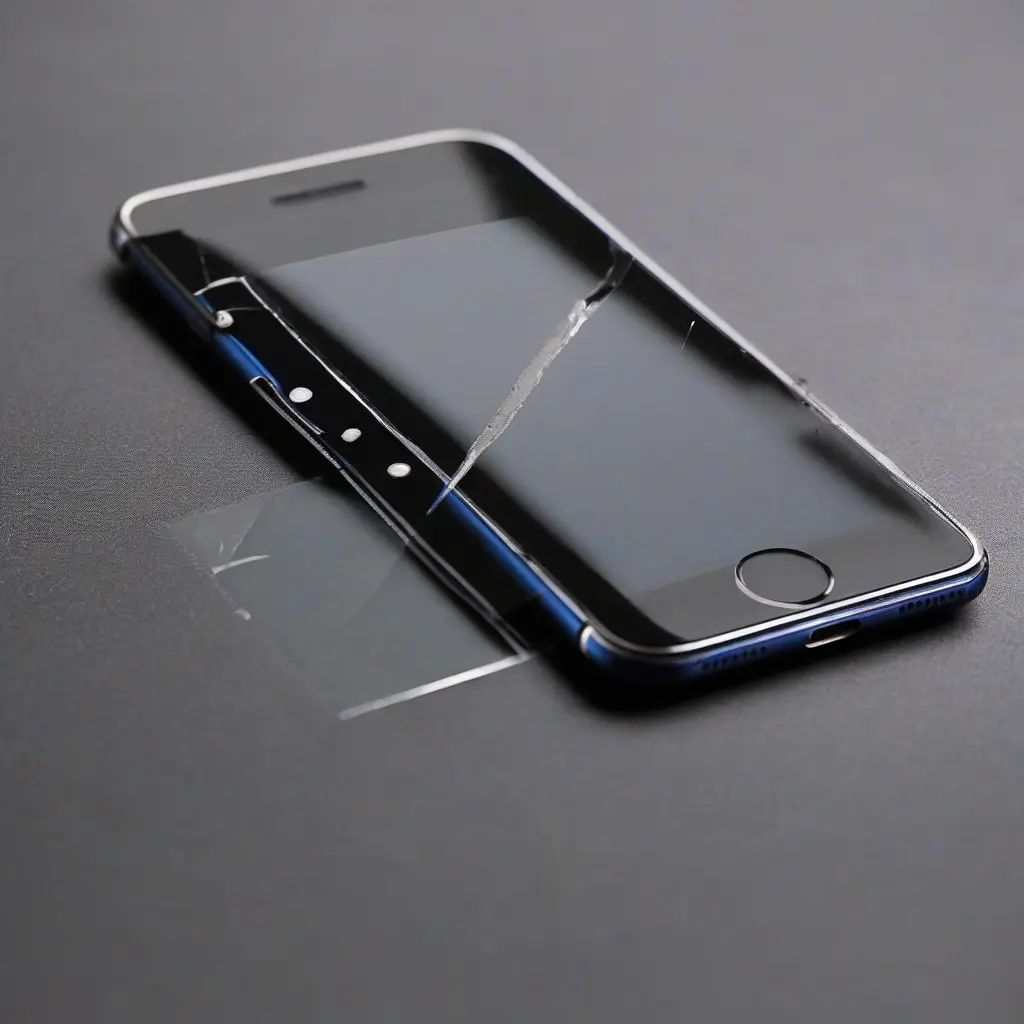
Touchscreen issues on iPhones and iPads can be frustrating, often resulting in unresponsive screens or erratic touch sensitivity. Understanding the potential causes and solutions is essential for effective resolution. This article provides a detailed exploration of common touchscreen problems and practical methods to fix them, ensuring your device works as intended. Whether you’re dealing with an iPad that won’t respond to touch or an iPhone with erratic behavior, this guide will help you troubleshoot and resolve these issues quickly.
Understanding Touchscreen Technology
Touchscreen technology in iPhones and iPads utilizes capacitive screens, which detect touch through electrical signals. The screen is made up of layers that include a glass layer and a touch-sensitive layer. When you touch the screen, it interrupts a small electrical field, allowing the device to recognize your touch. Understanding how this technology works can help diagnose why your screen might not be responding properly. Common issues arise from physical damage, software glitches, or even environmental factors such as moisture.
Common Causes of Touch Issues
There are several common causes of touchscreen problems on iPhones and iPads. Hardware issues such as broken screens or damaged connectors can lead to unresponsive touch capabilities. Additionally, software glitches from outdated iOS versions can also impair touchscreen functionality. Environmental factors, including extreme temperatures or moisture, can contribute to erratic screen behavior as well. Identifying the root cause is essential in determining the effective fix for your touchscreen issues.
Restarting Your Device
One of the simplest solutions to address touchscreen issues is to restart your iPhone or iPad. A restart can clear temporary cache files and resolve minor software glitches that may affect touch responsiveness. To restart an iPhone, press and hold the power button and either volume button until the slider appears. Drag the slider to turn off your device, then wait a few seconds before turning it back on. For iPads, the process is similar. This simple step often resolves touch issues without further intervention.
Cleaning the Screen
Dirt, dust, and fingerprints can significantly affect how your touchscreen responds. Cleaning your iPhone or iPad screen using a lint-free cloth can improve touch sensitivity. Make sure the screen is powered off before you start cleaning to avoid accidental inputs. Use a damp cloth with water or a gentle cleaning solution specifically designed for electronics. Avoid excessive moisture, as it can seep into the device and cause more issues. Regular cleaning can help maintain the responsiveness of your touchscreen.
Checking for Software Updates
Outdated software can lead to numerous problems, including touchscreen responsiveness issues. Ensure that your iPhone or iPad is running the latest version of iOS. To check for updates, go to Settings, tap General, and then Software Update. If an update is available, download and install it. Software updates can not only introduce new features but also fix bugs that may affect touchscreen performance. Keeping your device updated is crucial for maintaining its overall functionality and responsiveness.
Resetting All Settings
If basic troubleshooting steps haven’t resolved the touchscreen issue, consider resetting all settings. Navigate to Settings, select General, then Reset, and choose ‘Reset All Settings.’ This action will restore your device to its default settings without deleting personal data like photos and apps. However, it will reset preferences, including Wi-Fi passwords and wallpaper options. This method can help fix software glitches that impact the touchscreen and may restore its functionality effectively.
Restoring Your Device
If you’ve tried all the previous steps and your touchscreen is still unresponsive, you may need to restore the device using iTunes or Finder. Connect your iPhone or iPad to your computer and launch iTunes (or Finder for macOS Catalina or later). Select your device, then click ‘Restore.’ This process erases all data and reinstalls the latest version of iOS. Ensure that you have a backup of your device beforehand, as this step will erase all content. Restoring can help eliminate software issues causing touchscreen problems.
Physical Damage Assessment
If your device still experiences touch issues after exhaustive troubleshooting, it may be time to assess for physical damage. Inspect the screen for cracks or scratches and check any cables connected to the display for damages. If you find signs of hardware damage, visiting a professional repair service or an Apple Store may be necessary. Physical repairs can restore touch functionality and alleviate any persistent issues that software solutions cannot address.
Seeking Professional Help
When all else fails, seeking professional assistance is the best course of action. Certified technicians can diagnose more complex issues that might be affecting your touchscreen, including underlying hardware problems. Before taking your device to a repair center, check warranty status and consider AppleCare if applicable. Getting professional guidance ensures that your device is handled correctly, minimizing the risk of further damage during diagnosis or repair.
Conclusion
In summary, fixing touchscreen issues on your iPhone or iPad involves a series of troubleshooting steps ranging from simple restarts to more complex solutions like software restoration. By following these methods, you can effectively address the problem and get your device back to optimal performance. Regular maintenance and timely updates can prevent such issues from arising in the future, ensuring a smooth user experience.







