Unrecognized USB connections on mobile devices can be frustrating and inconvenient, leading to issues like failed data transfers and charging problems. Whether you are trying to connect your smartphone to a computer for file transfer or plug in a charger, these connection failures can stem from various causes. This article explores common reasons behind unrecognized USB connections, along with practical solutions to help you troubleshoot and resolve these problems effectively.
Understanding USB Connection Types
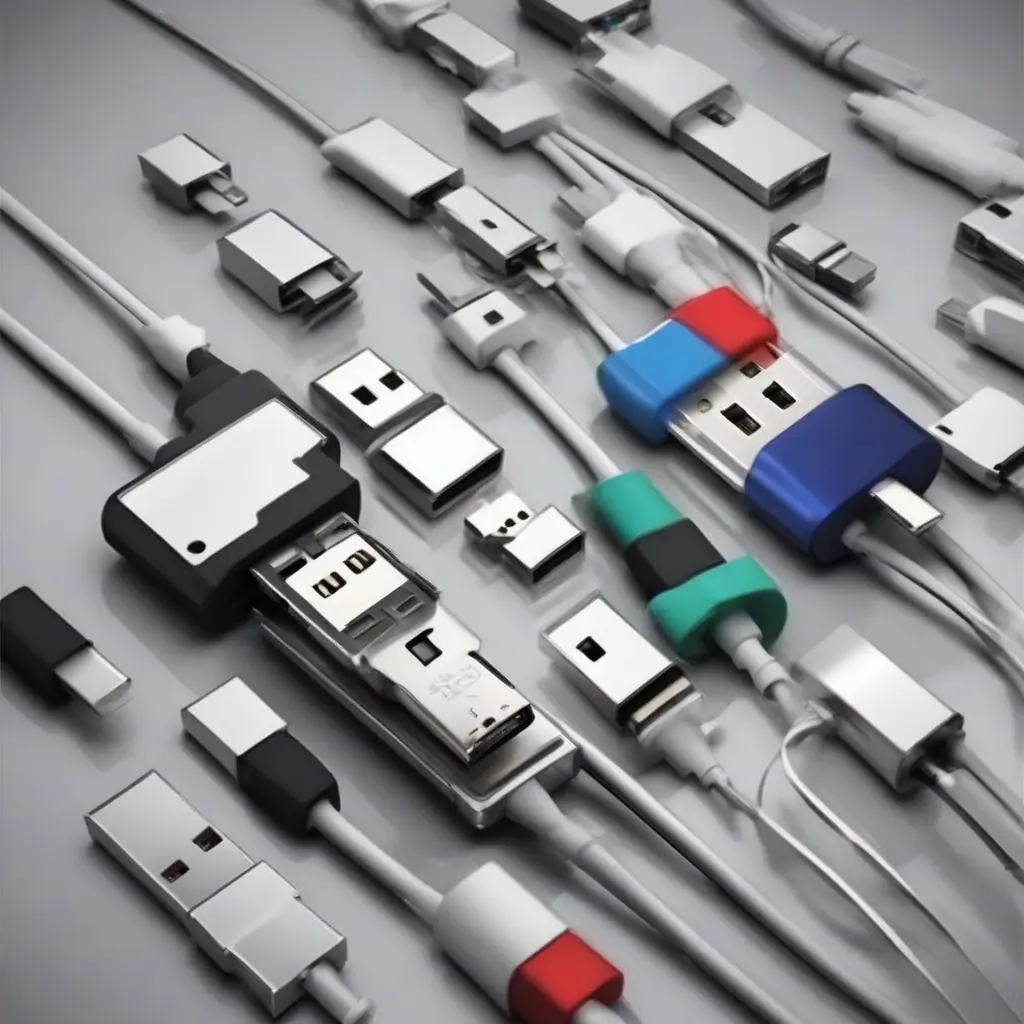
The type of USB connection utilized can significantly affect how your mobile device interacts with other peripherals. Common USB types include USB-A, USB-B, USB-C, and micro USB. Devices equipped with USB-C ports typically offer faster charging and data transfer rates. Understanding which type you have can help identify compatibility issues that might lead to connection problems. Additionally, different cables and adapters can also impact functionality, so ensuring you have the correct type can be a crucial first step in troubleshooting.
Checking Your USB Cable
One of the most frequent causes behind unrecognized USB connections is a faulty or incompatible USB cable. Inspect your cable for any visible damage, such as frays or kinks. Even if the cable appears to be in good condition, it may not support data transfer, especially if it’s a low-quality or off-brand product. Testing with another known-working cable can help determine if the problem lies with the cable itself or if other issues need to be addressed.
Inspecting USB Ports for Damage
Another vital step in troubleshooting unrecognized USB connections is to inspect both the mobile device’s and the computer’s USB ports. Dust, lint, or physical damage to the ports can prevent a proper connection. Using a flashlight, examine the USB ports closely, and clean them gently if necessary, using compressed air or a soft brush. Ensure there is no foreign material that might obstruct the connection. Physical damage to the port can require professional repair to restore functionality.
Updating Mobile Device Software
Sometimes, outdated software can hinder the performance of USB connections on your mobile device. Regular software updates often include bug fixes and improvements that can resolve connection issues. Check your device’s settings for any available updates and install them. After updating, restart your device to ensure all changes take effect. This simple step can often rectify unrecognized USB problems and improve overall connectivity performance.
Configuring USB Connection Settings
Mobile devices often provide different connection modes when USB is plugged in, such as charging, file transfer, and tethering. If your device is connected but not recognized, you may need to change the USB settings. When you connect the device, a prompt usually appears allowing you to choose the desired mode. Ensure that the correct option is selected for your needs, as choosing charging only will prevent the device from being recognized for data transfer.
Testing with Different Devices
To pinpoint the source of the unrecognized USB connection, try connecting your mobile device to a different computer or USB port. Alternatively, test a different mobile device with the same cable and USB port to see if it recognizes the connection. This process can help determine whether the issue is with your mobile device or the host computer. If other devices work perfectly, the issue may lie within your mobile device or its settings.
Identifying Driver Issues
Driver problems on your computer can also result in unrecognized USB connections. Especially for Windows devices, outdated or missing drivers can impair connectivity. To fix this, navigate to the Device Manager, locate Universal Serial Bus controllers, and check for any warning signs. Right-click and select ‘Update Driver’ to ensure you have the latest version. Restart your computer afterward to implement the changes. This can resolve many connection errors linked to drivers.
Using Safe Mode for Troubleshooting
Booting your mobile device into Safe Mode can help discern if third-party applications are causing USB connection issues. In Safe Mode, only the device’s essential applications run, allowing you to test if a specific app is interfering with the USB connection. If the USB connection works seamlessly in Safe Mode, a third-party app might be the culprit, and removing or disabling it can help restore proper function.
Factory Reset as a Last Resort
If you’ve exhausted other troubleshooting options without success, a factory reset can potentially resolve deeper software problems affecting USB connections. Before opting for this step, ensure you back up all data, as a factory reset will erase everything on the device. After resetting, your mobile device will return to its original factory settings, which often alleviates persistent connectivity issues. Be prepared to reinstall applications and restore data afterward.
Conclusion
Addressing unrecognized USB connection issues on your mobile device can involve various troubleshooting steps, from inspecting cables to updating software. By following the outlined methods, you can systematically identify and resolve the underlying problems. Taking precautionary measures, such as using quality cables and keeping your device updated, can further prevent future connectivity issues. If problems persist despite your efforts, consulting with a professional technician may be a necessary next step.